
PromptMill
Batch-generate images on Google Flow.
Paste your prompts, press Start, walk away. Every image lands in your Downloads folder.






English · Tiếng Việt
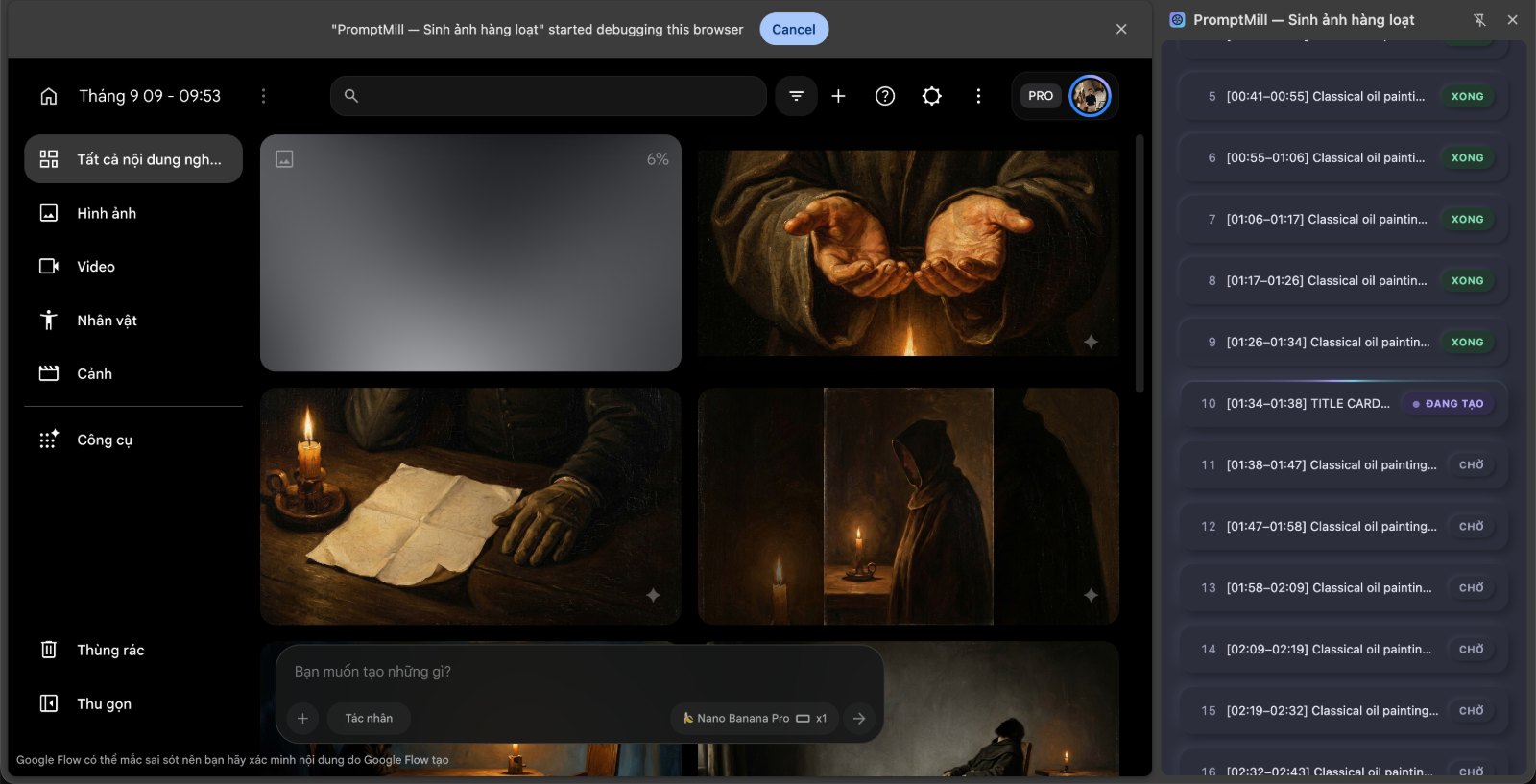
A 105-prompt queue mid-run. Finished prompts are skipped on the next pass.
---
> [!IMPORTANT]
> **The extension's interface is currently in Vietnamese only.** The code, this README, and all
> configuration are documented in English, but every button and label you see in the side panel is
> Vietnamese. If that's a blocker for you, [issue #1 tracks internationalisation](../../issues) —
> the strings are not extracted yet, so it's a good first contribution.
---
## What it does
You have 200 prompts and one Google Flow tab. Doing it by hand means 200 rounds of paste → Enter →
wait → right-click → Save As. PromptMill does that loop for you.
1. **Paste a list of prompts** — one per line — or drag a `.txt` file onto the panel.
2. **Press Start.** PromptMill types each prompt into Flow, submits it, waits for the images, and
downloads every one of them into `Downloads//`.
3. **Close the laptop.** It pauses between prompts on a human-shaped rhythm so the run doesn't look
like a script hammering the page.
Prompts that fail get a **Retry** button. Prompts that already succeeded are skipped when you run
again, so you never pay for the same image twice.
---
## Why this one
There are a lot of Google Flow automators. Most of them chase feature count — parallel jobs, video,
4K. PromptMill deliberately goes the other way and optimises for the thing those tools' reviews
complain about most: **it should just work, and you should be able to tell what it's doing.**
| | |
|---|---|
| **Nothing leaves your machine** | No account, no server, no analytics, no remote config. The extension talks to exactly two hosts: `labs.google` and `flow.google.com`. Read [`background.js`](background.js) and [`sidepanel.js`](sidepanel.js) — that's the whole network surface, and the [privacy policy](PRIVACY.md) shows you the one-line command to verify it yourself. |
| **It tells you when it's confused** | Before pressing Enter it reads the prompt box back and compares it to what it meant to type. If they don't match, it stops and shows you what's actually in the box, instead of waiting four minutes for images that were never coming. |
| **It reads Flow's own error messages** | Out of quota, content policy, service overloaded — PromptMill catches the on-page alert, stops the queue, and shows you the message verbatim. |
| **It survives its own restarts** | Chrome kills MV3 service workers after ~30 seconds idle, but a single image can take four minutes. PromptMill detects the restart and reclaims its debugger session instead of dying. |
| **No build step** | Plain JS, HTML and CSS. Clone it, load it, edit it. No npm, no bundler, no transpiler. |
### And what it deliberately does *not* do
Being honest about this up front, because the alternatives often aren't:
- **Images only.** No Veo video generation.
- **One prompt at a time.** No parallel job submission.
- **No resolution picker.** It downloads whatever Flow puts on the page.
- **One Flow tab.** If you have several open, it uses the first one it finds.
If you need video or parallel batches, use one of the other extensions — genuinely, they're better
at that. Come back if reliability turns out to matter more.
---
## Install (about 30 seconds)
No developer account and no $5 fee needed.
1. Download this repository and unzip it.
2. Open `chrome://extensions`.
3. Turn on **Developer mode** (top right).
4. Click **Load unpacked** → pick the `PromptMill` folder.
5. The PromptMill icon appears in your toolbar. Done.
> After editing any code, hit the reload (↻) button on the extension card **and press F5 on the
> Flow tab.** Skipping the F5 leaves the old content script alive in the page.
---
## Using it
1. Open a project on **Google Flow** (`labs.google/fx/tools/flow` or `flow.google.com/project/…`).
2. Click the PromptMill icon to open the side panel.
3. Wait for the status line to go green.
4. Load your prompts — **one per line** — by pasting, by dragging text files onto the panel, or with
the *Tải file .txt* (Load .txt file) button.
5. Pick a download subfolder, toggle numbering, set the per-image timeout.
6. Press **Bắt đầu** (Start).
7. **Tạm dừng** (Pause) holds the queue after the current image finishes — press it again to
resume. **Dừng** (Stop) ends the run.
8. **Drag queue rows** to reorder them while stopped.
Two ways to start over, both next to what they affect:
- **Xoá tất cả** (Clear all), beside the file button — empties the prompt list entirely.
- **Đặt lại** (Reset), in the queue header — keeps the prompts, puts every one back to *Chờ*
(pending) so the whole batch runs again. Without this there is no way to re-run a finished list,
since editing the box now preserves per-prompt status.
Both need **two clicks**: the first turns the button into *Chắc chưa?* ("sure?"), the second acts.
It disarms itself after 4 seconds. No modal dialog — one destroys your list, the other spends
quota, and a blocking dialog in a side panel is worse than a button that asks twice.
**Dragging vs. the button:** dragging **appends** to your list; the button **replaces** it. Drop
something by mistake and you lose nothing.
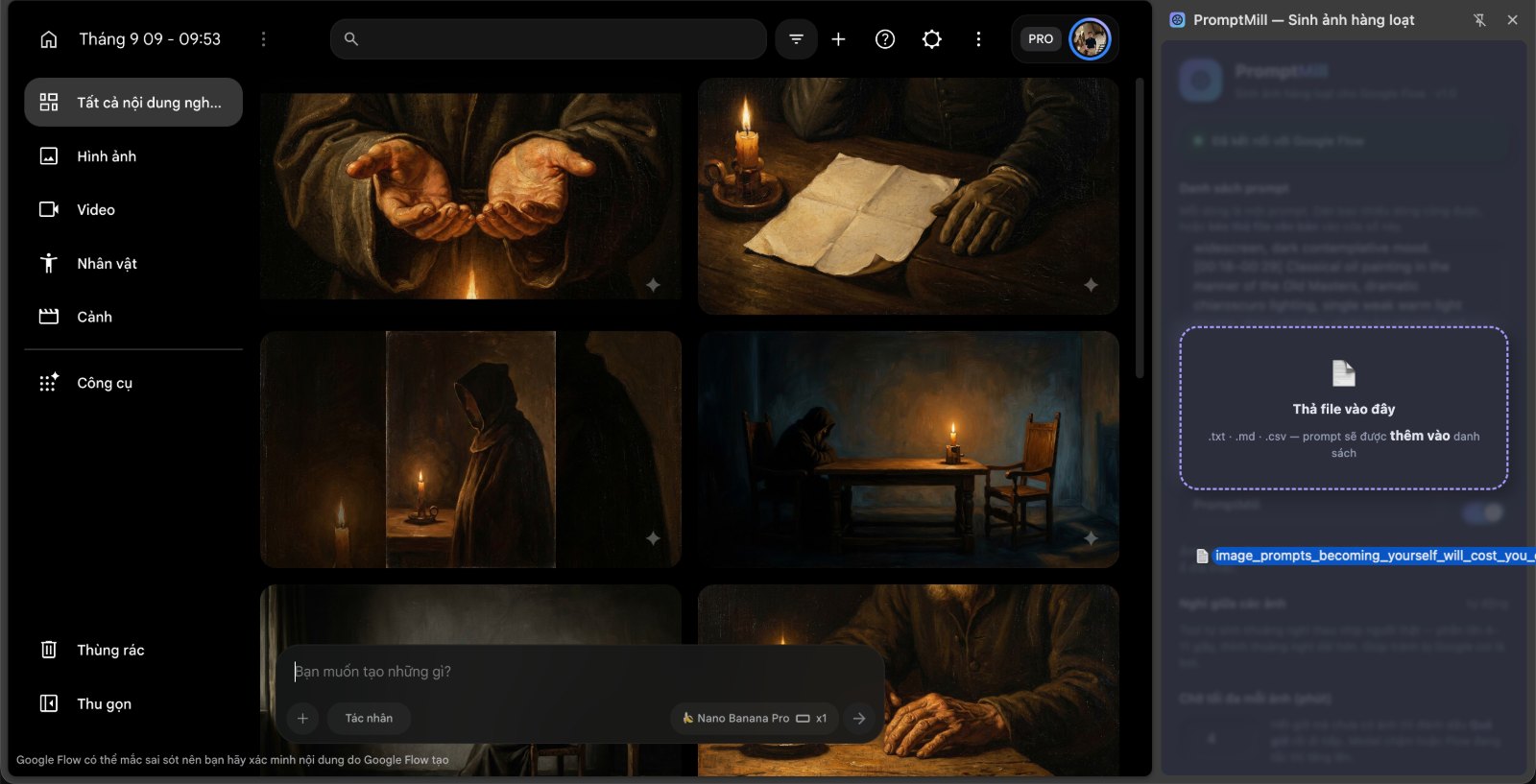
Accepted files: `.txt`, `.md`, `.csv`, `.log`, `.json`, or anything with a `text/*` MIME type, up
to 2 MB each. Windows `CRLF` line endings and UTF-8 BOMs are handled — no cleanup needed.
JSON is read in the three shapes people actually have: `["a","b"]`, `[{"prompt":"a"}]`, and
`{"prompts":[…]}` (`{"items":[…]}` works too). Prompts containing newlines are folded onto one line,
since the model here is one prompt per line.
Images are saved to `Downloads / / 001_your-prompt.jpg`. Chrome creates the subfolder
for you — nothing to set up.
The number's width follows the size of your list, so filenames always sort correctly: 210 prompts
give `001` … `210`, while 1,500 prompts give `0001` … `1500`. Turn numbering off and the prompt text
alone is used. When one prompt returns several images they're all saved, suffixed `_1`, `_2`.
The extension matches the real image format rather than trusting the URL, so a JPEG is saved as
`.jpg` even though Google's CDN links carry no extension.
---
## How it actually works
Worth understanding, because it explains the one scary-looking thing.
Flow's prompt box is a [Slate.js](https://docs.slatejs.org/) editor, and Slate ignores synthetic
keyboard events — the usual `dispatchEvent` tricks silently do nothing. So PromptMill types through
the **Chrome DevTools Protocol** instead, using the `chrome.debugger` API. Real keystrokes at the
browser layer, indistinguishable from your fingers.
Two consequences you need to know about:
1. **You must close DevTools (F12) on the Flow tab.** Only one debugger client can attach at a time,
and DevTools wins.
2. **Chrome shows a yellow "PromptMill is debugging this browser" bar while it runs.** That bar is
Chrome telling you the truth. Leave it alone — dismissing it cuts the connection mid-run.
This is also why sending prompts is the *most* robust part of the tool rather than the most
fragile: it doesn't hunt for a Send button in the DOM, so Google redesigning that button changes
nothing.
### The pause between prompts
Not a fixed number, and deliberately not a uniform random one. Gaps between real human actions are
right-skewed — mostly short, occasionally long — while uniform randomness spreads flatly between
its bounds, and *that flatness is itself a machine fingerprint*. PromptMill draws from a log-normal
distribution and resamples out-of-range draws rather than clamping them (clamping would pile ~4% of
all gaps onto one exact value, which is the very thing it's trying to avoid).
Defaults: median 6 s, half of all gaps between 4.9 s and 7.6 s, 5% of runs take a 45–100 s break.
About 10 s per prompt on average — roughly 17 minutes of waiting across 100 prompts.
Tune it in the `DELAY` block at the top of [`sidepanel.js`](sidepanel.js).
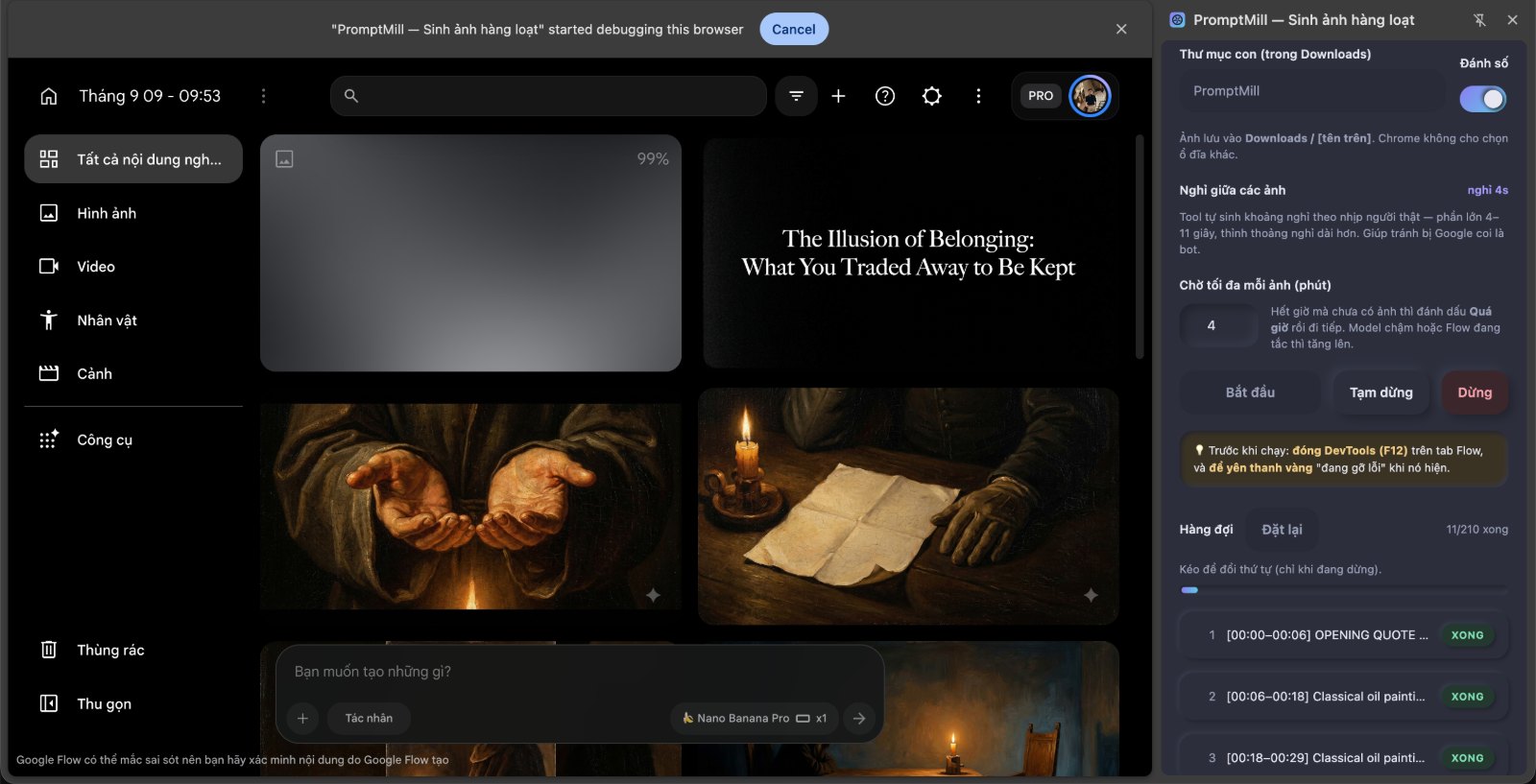
The countdown between prompts, and per-prompt status in the queue.
---
## Known issues
Real bugs, listed here rather than discovered by you at 2am.
| Issue | What you'll see | Workaround |
|---|---|---|
| **Very large lists get slow** | Above ~2,000 prompts, each keystroke in the prompt box costs 100 ms or more, because the queue is re-rendered on every input event | Work in batches of a few hundred |
| **"Done" means "download started"** | PromptMill doesn't wait for the file to finish writing, so an expired CDN link can still show as successful | Check the Downloads folder count against the queue |
---
## Fixing it when Google changes Flow
PromptMill drives Flow's UI, not an API, so a redesign can break it. It touches Flow in **three**
places — everything else is browser-level and immune.
| # | Job | Code | Symptom when it breaks |
|---|---|---|---|
| 1 | Recognise the Flow tab | `getFlowTab()` in `sidepanel.js` | Status stays red: *"Hãy mở một project Google Flow"* |
| 2 | Find the prompt box | `findPromptInput()` / `wakePromptBox()` in `content.js` | *"Không tìm thấy ô prompt"* |
| 3 | Know when images are done | `getCompletedImages()` / `waitForNewImages()` in `content.js` | Long wait, then **Quá giờ** (timeout) |
### 1. Flow tab not recognised
Google changed the URL. Fix **three** places — missing any one breaks it:
```js
// sidepanel.js → getFlowTab()
if (url.hostname === "flow.google.com") {
return /^\/project(?:\/|$)/.test(url.pathname); // ← here
}
```
…plus `host_permissions` and `content_scripts[0].matches` in `manifest.json`. Copy the URL straight
out of your address bar and compare.
### 2. "Không tìm thấy ô prompt" (prompt box not found)
PromptMill auto-detects using a list of selectors (`[data-slate-editor="true"]`,
`[role="textbox"]`, `textarea`…). If that misses, name it explicitly in the `CONFIG` block at the
top of `content.js`:
```js
promptSelector: '[data-slate-editor="true"]',
```
Open Flow, press F12, use the element picker on the prompt box, and look for a **stable** attribute
— `data-slate-editor`, `role`, `aria-label`.
> Don't use DevTools' **Copy → Copy selector**. It produces things like
> `#root > div:nth-child(3) > div > div:nth-child(2)`, which breaks the next time Google touches
> the layout.
If Flow's prompt box only materialises after a click, `wakePromptBox()` handles that — it finds the
button carrying the `arrow_forward` icon and clicks to the left of it. If Google renames that icon,
change the `arrow_forward` string in `content.js`.
### 3. "Chữ không vào được ô prompt" (text didn't reach the box)
PromptMill clicks the centre of the prompt box. If something covers that point, the click lands
elsewhere and the text goes nowhere.
Before pressing Enter it reads the box back and compares. On a mismatch it stops immediately and
shows what it actually found, rather than waiting out the full four minutes. When you hit this:
- Close any dialogs or popups on the Flow page.
- Scroll so the prompt box is fully visible.
- Don't shrink the Chrome window or widen the side panel enough to cover the box.
- Don't touch the Flow tab while it runs.
The whole queue stops on this error rather than continuing — a click that misses will miss for every
prompt, so continuing just burns time.
### 4. Long wait, then "Quá giờ" (timeout)
Adjust the `CONFIG` block at the top of `content.js`:
| Setting | Default | When to change it |
|---|---|---|
| `maxWaitMs` | `240000` (4 min) | Slow model or congested Flow → raise it |
| `minImageSize` | `256` | Results smaller than this are skipped as icons → lower it |
| `settleMs` | `1800` | Images arriving broken or partial → raise it |
| `pollMs` | `2000` | How often it checks for new images. Rarely needs touching |
| `maxSettleRounds` | `6` | Flow spacing its images far apart → raise it |
If it has *never* worked on your machine, check these two before touching any selector — they cause
more failures than everything else combined: **DevTools must be closed** on the Flow tab, and the
**yellow debugging bar must be left alone**.
### 5. "Google Flow báo lỗi: …" (Flow reported an error)
PromptMill read an error Flow put on the page — out of quota, content policy, service overloaded —
and **stopped the queue**, quoting it verbatim. Without this, every doomed prompt would still eat
the full four-minute timeout.
It stops the whole queue rather than continuing because the usual cause is a quota limit, and that
fails identically for every remaining prompt.
False positives are rare (it only looks at `role="alert"` elements that appeared *after* the prompt
was sent, and only when the text matches a keyword list), but if you hit one:
```js
detectPageError: false,
```
…or keep it on and edit the `errorHint` pattern just below it.
### 6. Two settings that do nothing
`generateSelector` and `submitWithEnter` are still in `CONFIG` but are **dead legacy** — changing
them has no effect. Since the move to `chrome.debugger`, the code path that read them is never
called. (Along with them, roughly 230 lines of `content.js` are unreachable — see
[`CONTRIBUTING`](#contributing) if you'd like to delete them.)
> **General debugging tip:** open the Console on the Flow tab *before* starting, and filter for
> `[PromptMill]`. It logs which prompt box it found, how long it's been waiting, and when images
> appeared. Then **close DevTools before pressing Start** — it holds the debugger channel.
---
## Known limitations
- **An image can occasionally be attributed to the wrong prompt.** PromptMill separates new images
from old by snapshotting the page first, but Flow returns several images per generation, seconds
apart. A straggler that slips past the snapshot gets counted against the *next* prompt and saved
under its name. Mostly mitigated — the snapshot waits for the image list to stop changing, and
every image from a prompt is downloaded rather than just the first — but a ~1 second window
remains. If you hit it: raise `settleMs` to `3000`–`4000` and work in a project with fewer old
images.
- **`blob:` images.** Most Flow images are plain `https` links. If one arrives as a `blob:` URL and
CORS blocks it, the download can fail.
---
## Make it yours
- Name and description → `manifest.json` (`name`, `description`).
- Title → `sidepanel.html`.
- Icons → the three files in `icons/`.
- **Colours → only the `:root` block at the top of `sidepanel.css`.** No colour is hard-coded
anywhere below it.
The interface is **dark neumorphism**. Shape comes entirely from two opposing shadows — light from
the top-left (`--hi`), dark from the bottom-right (`--lo`) — with no borders. Raised means
clickable, inset means editable, flat means disabled.
Three rules you'll break if nobody tells you:
> **`--bg` must be a mid-tone, never pure black or pure white.** It needs room for a shadow on
> *both* sides. On the current dark base, `--hi` is *lighter* than `--bg` — the opposite of what a
> light theme does.
> **Never give `body` a gradient.** The whole style rests on the illusion of one evenly-lit surface.
> **Colour pairs invert with the base.** On a dark base each state is a *dark* tinted fill plus a
> *light* `-ink` for the text on it. Copying a light theme's pairs across leaves the text invisible.
All 54 text elements in the default palette meet WCAG AA (≥ 4.5:1); if you change the palette,
re-check contrast.
---
## Contributing
Issues and PRs welcome. Good places to start:
- **Internationalisation** — extract the Vietnamese strings into `_locales/`. Highest-impact change
in the repo.
- **Delete the dead code** — around 230 lines of `content.js` are unreachable (see §6 above).
- **A prompt-count cap** — see the "very large lists" known issue.
- **Veo video support**, **parallel submission**, or **a resolution picker** — the three things
comparable tools have that this one doesn't. All three need someone with a live Flow account to
map the relevant DOM; see the discussion in the issues.
No build step, no test framework, no CI yet. Adding `eslint` would be a genuine improvement.
---
## FAQ
**Is this against Google's Terms?** Automating a web UI may conflict with Google's terms. Use it in
moderation and keep the delays reasonable. That's your call to make, not this README's.
**Can I put it on the Chrome Web Store?** Yes, with a caveat. The `debugger` permission is on
Chrome's sensitive list, which triggers **mandatory manual review** and a request to justify it —
not an automatic rejection. Several comparable extensions ship on the store today. Expect a longer
review and be ready to explain why Slate.js forces the CDP approach.
**Where's the data going?** Nowhere. Your prompts live in `chrome.storage.local` on your own
machine, and images go straight to your Downloads folder. The full [privacy policy](PRIVACY.md)
lists every stored value, every DevTools Protocol command the extension issues, and how to check
all of it yourself.
**Can I pick a different drive for downloads?** No — Chrome extensions can only write inside the
browser's download directory. Set that in `chrome://settings/downloads`.
---
## Support the project
PromptMill is free, has no ads, no account, and collects nothing — and it will stay that way. If it
saved you an afternoon of clicking Save As, you can buy me a coffee:

Entirely optional. Reporting a bug or sending a pull request helps just as much.
---
## License
[MIT](LICENSE) © Bui Van Thuong. Do what you like with it — fork it, rebrand it, ship it to your
own community.